Calendar
Schedule events, link them to pages and see task due dates.
The Calendar page opens on the month view with weeks starting on Monday. Use the toolbar to move between dates and switch views.
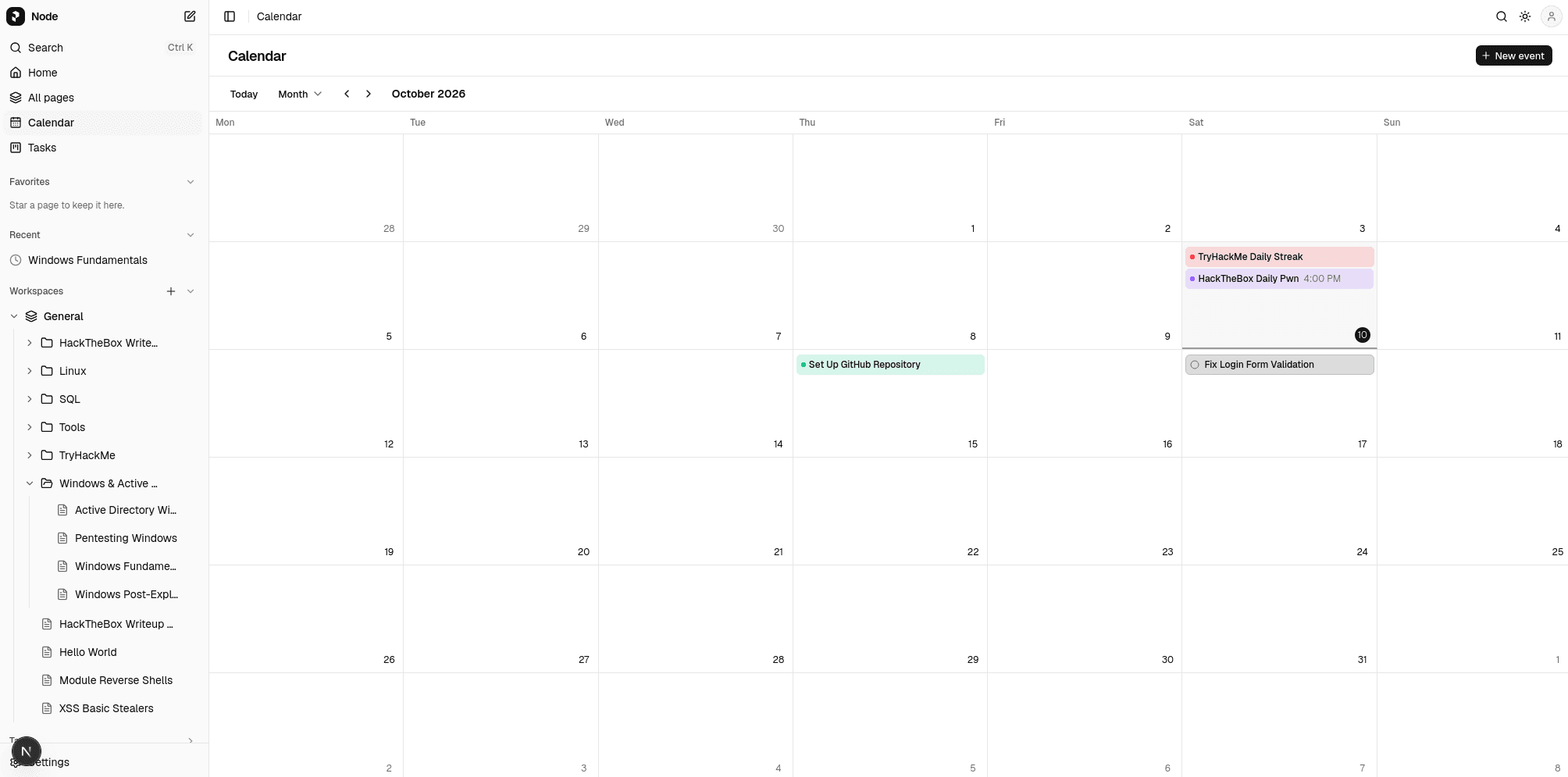
Create an event
- Click New event, or
- click a day or time slot, or
- drag across a range to select it.
A new event with no slot chosen starts at the next full hour and lasts one hour.
| Field | Notes |
|---|---|
| Title | Required. |
| All day | Switches between a date range and a single day with start and end times. |
| Linked page | Optional. Ties the event to one of your pages. |
| Color | Default, Blue, Green, Orange, Red or Purple. |
| Description | Optional. |
Change an event
- Click an event to edit or delete it.
- Drag an event to another day or time to reschedule it.
- Resize an event to change how long it lasts.
Changes made by dragging are saved immediately.
Link an event to a page
From a page's menu, choose Add to Calendar. The new-event dialog opens with that page already linked. Events with a linked page show a small page icon beside the title. The link follows the page if it is renamed or moved.
Task due dates
Tasks that have a due date appear on that day with a status icon. They cannot be edited from the calendar; clicking one opens the Tasks board.
Events are stored in the browser
Like tasks, events live in this browser's storage rather than in files.